

flask 后端 + 微信小程序和网页两种前端:调用硬件(相机和录音)和上传至服务器
创始人
2025-01-20 14:05:02
0次
选择 flask 作为后端,因为后续还需要深度学习模型,python 语言最适配;而 flask 框架轻、学习成本低,所以选 flask 作为后端框架。
微信小程序封装了调用手机硬件的 api,通过它来调用手机的摄像头、录音机,非常方便。
网页端使用 JavaScript 调用则困难一些,走了很多弯路,在这里记录下来。
前提:已经配置好 python 环境、安装了 flask;
坑(备忘)
- 访问摄像头,谷歌浏览器可以访问,但是 edge 不可以,百思不得其解,查到 浏览器调用摄像头拍照 说因为 windows 限制了访问权限,不只是打开网页的时候问你的那个,还有系统限制。解决方法是
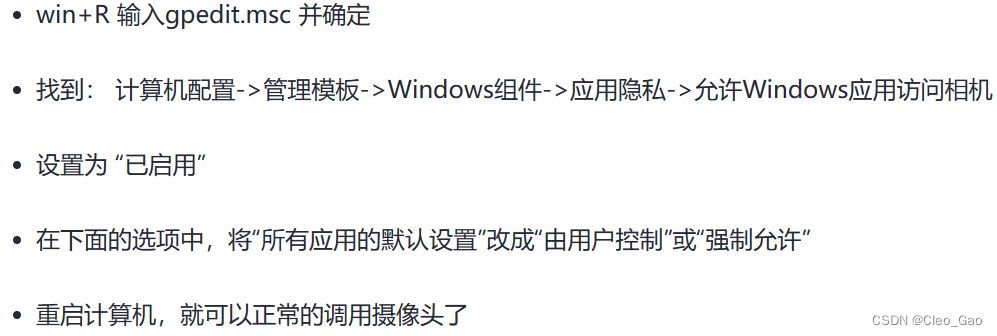
这么做确实可以,可是移动端怎么办呢?我这个网页还是想在移动端使用,移动端怎么办呢……
flask 端
flask 的任务是收取前端传来的文件,保存在本地。
from flask import Flask, request, jsonify, render_template app = Flask(__name__) app.config.from_object(__name__) app.config["JSON_AS_ASCII"] = False # 防止中文乱码 app.json.ensure_ascii = False # 防止中文乱码 # 设置上传文件夹 app.config['UPLOAD_FOLDER'] = r'D:\A_data_trans\test(改成你的位置)' @app.route('/vqa', methods=['POST']) def app_vqa(): # 保存图片 img_file = request.files['img'] # 这里规定了前端传图片过来的时候,用的关键字是 'img',别的,比如 'image' 就会拿不到 if img_file.filename == '': return jsonify({'error': 'No image'}), 400 try: image_path = os.path.join(app.config['UPLOAD_FOLDER'], img_file.filename) img_file.save(image_path) log(f"save image: {image_path}") except Exception as e: return jsonify({'error': str(e)}), 500 # 传过来的就是文本 question = request.form['question'] # 前端传来的文本信息都是放在 form 中的 # 预测答案 try: answer = vqa(image_path, question) return jsonify(answer) except Exception as e: return jsonify({'error': str(e)}), 500 # 接收文件的代码,其实和上面长得一样,略微有一 miu miu 区别 @app.route('/upload', methods=['POST']) def app_upload_file(): # 保存图片 img_file = request.files['img'] if img_file.filename == '': return jsonify({'error': 'No image'}), 400 try: image_path = os.path.join(app.config['UPLOAD_FOLDER'], img_file.filename) img_file.save(image_path) shutil.copy(image_path, os.path.join(os.path.dirname(__file__), 'static/show.jpg')) # 用于展示在网页上 log(f"save image: {image_path}") except Exception as e: return jsonify({'error': str(e)}), 500 try: # 传过来的就是文本 question = request.form['question'] except: question = "请描述图片内容" return jsonify({"image": img_file.filename, "question": question}) @app.route('/upload/speech', methods=['POST']) def recognize_speech(): speech_file = request.files['speech'] try: save_path = os.path.join(app.config['UPLOAD_FOLDER'], speech_file.filename) speech_file_path = os.path.join(app.config['UPLOAD_FOLDER'], save_path) speech_file.save(speech_file_path) # question = speech2txt(speech_file_path) # print('百度识别结果:', question) except Exception as e: return jsonify({'error': str(e)}), 500 return jsonify({"speech": speech_file.filename}) 微信小程序
微信小程序端的任务是,调用手机相机,把相机画面展示给用户,加一个按钮,点击按钮拍照;另外一个按钮,点击可以把拍到的照片上传。
wxml 中,放上一个 camera 用来显示相机画面;放上几个 button,控制拍照、上传。
用到的 wxss
/**index.wxss**/ page { height: 100vh; display: flex; flex-direction: column; } .scrollarea { flex: 1; overflow-y: hidden; } .btn-normal { margin-top: 10px; padding: 10px; background-color: rgb(252, 226, 230); color: black; border-radius: 0ch; border-color: brown; border-width: 1px; border-style: dotted; cursor: pointer; height: 70px; line-height: 50px; width: 90%; text-align: center; font-size: xx-large; } .btn-large { height: 300px; } .btn-pressed { background-color: rgb(202, 129, 140); color: rgb(82, 75, 75); } .btn-human { background-color: darkseagreen; } .btn-human-pressed { background-color:rgb(89, 141, 89); color: rgb(75, 82, 77); } button:not([size=mini]) { width: 90%; } .useGuide { margin-top: 10px; margin-bottom: 10px; width: 90%; } .text-question { margin-top: 10px; width: 90%; } .my-container { display: flex; flex-direction: column; align-items: center; justify-content: center; } .button-row { display: flex; justify-content: space-between; width: 90%; } .donot-display { display: none; } js 部分。因为微信小程序给封装得很好,所以基本没有什么坑,按照这个写就行,基本不出错。要注意各种 success 方法,要用 success: (res) => {} 的写法,不然在里面调用 this 是识别不到的。
Page({ data: { serverUrl: 'http://改成你的', // 服务器地址 photoData: '', // 用户拍摄的图片 speechData: '', // 用户提问的录音文件 textQuestion: '', // 用户提问文本 recorderManager: null, textAnswer: '', // vqa模型识别的文本 }, // 点击拍照的方法在这里 (按钮绑定在 wxml 就写好了) takePhoto(e) { console.log("拍摄照片") const ctx = wx.createCameraContext(); ctx.takePhoto({ quality: 'low', success: (res) => { this.setData({ photoData: res.tempImagePath // res.tempImagePath 就可以拿到拍到的照片文件的 object url 地址,把这个地址传给服务器,就可以把该文件传给服务器 }); } }); }, // 控制长按录音的代码放在这里(按钮绑定在 wxml 就写好了) startRecord() { const recorderManager = wx.getRecorderManager(); this.setData({ recorderManager }); // 停止录音的回调方法;在这里我加了调用百度语音 api 的东西,这部分会另外写文详说,这里只放出来一部分。所以这里没有把录音文件上传,而是直接把语音识别的结果上传文件夹 recorderManager.onStop((res) => { console.log('recorder stop', res); this.setData({ speechData: res.tempFilePath }); var baiduAccessToken = wx.getStorageSync('baidu_yuyin_access_token'); // 读取文件并转为 ArrayBuffer const fs = wx.getFileSystemManager(); fs.readFile({ filePath: res.tempFilePath, success: (res) => { const base64 = wx.arrayBufferToBase64(res.data); wx.request({ url: 'https://vop.baidu.com/server_api', data: { format: 'pcm', rate: 16000, channel: 1, cuid: 'sdfdfdfsfs', token: baiduAccessToken, speech: base64, len: res.data.byteLength, }, method: "POST", header: { 'content-type': 'application/json' }, success: (res) => { wx.hideLoading(); console.log("拿到百度语音api返回的结果") console.log(res.data); var baiduResults = res.data.result; console.log(baiduResults[0]); if (baiduResults.lenth == 0) { wx.showToast({ title: '未识别要语音信息!', icon: 'none', duration: 3000 })} else { this.setData({textQuestion: baiduResults[0]}); } } }) } }) }); // 这里才是控制录音的参数;微信小程序端可以设置这些录音参数,因为后面要调用百度语音识别 api,该 api 仅支持采样率 16000 或 8000,对压缩格式也有要求,所以录音的时候要和 api 的要求保持一致 recorderManager.start({ format: 'PCM', duration: 20000, // 最长支持 20s sampleRate:16000, encodeBitRate: 48000, numberOfChannels: 1, success: (res) => { console.log('开始录音'); }, fail: (err) => { console.error('录音失败', err); } }); }, // 上传的代码放在这里 predVQA() { if (this.data.photoData != '' && this.data.textQuestion != ''){ console.log('send img' + this.data.photoData); wx.uploadFile({ filePath: this.data.photoData, name: 'img', // 文件对应 key,后端通过该 key 获取文件;前后端注意保持一致 url: this.data.serverUrl+'/vqa', formData: {'question': this.data.textQuestion}, success: (res) => { console.log('成功上传'); if (res.statusCode == 200) { var answer = res.data this.setData({ textAnswer: answer }) } else { console.error(res) } }, fail: (err) => { console.error('上传失败'); } }) } }, }) 网页端的实现
网页端就要复杂很多……掉过很多坑真的很难搞……(这里感谢 b站 up主 “前端石头”,其中摄像头拍照和录音的 js 代码参考了他的代码)
而且这里有 2 个关键的问题:
- 关于视频拍照:如果我把展示视频流的那个控件隐藏掉,那拍出来的照片就是黑的。在微信小程序里就不会有这个问题。原因是,它拍照的原理是,通过 canvas 控件在 video 控件上截图,如果你隐藏掉了,自然没有图可截,就是黑的。我找了很多资料,貌似没有别的解决方法,所以我只能把视频放很小,放角落里……
- 关于录音:js 调用硬件就是很有限制。因为我后面想接百度语音识别的 api,该 api 仅支持采样率 16000 或者 8000 的音频,但是 js 默认录音采样率 48000。我找到一些人说,在
constrains里面传参,但是,不仅没用,而且传了之后会导致音频损坏……然后问了 chatgpt,它说 js 很难变,只能你先录好,然后通过代码改采样率。我试了直接传音频到服务器,然后 python 代码改采样率。但是 python 代码改采样率用的那个包,在 Windows 下运行会报错,还得下一个软件怎么怎么设置……就是很麻烦。所以,暂时没有找到优雅的解决方案。
html
Title { url_for('static', filename='css/full_button.css') }}" type="text/css"> ![]() 答案等待中... {# #}
答案等待中... {# #} javascript 的部分
有两个文件,放在 static 文件夹的 js 文件夹下:
user_camera.js
class SnapVideo { // 摄像头流媒体 stream; // 页面dom videoElement = document.getElementById('videoElement'); snapButton = document.getElementById('snapButton'); photoElement = document.getElementById('photo'); constructor() { const constraints = { audio: true, video: { facingMode: "environment", // "user" 代表前置摄像头 width: 448, // 视频宽度 height: 448, frameRate: 60, // 每秒 60 帧 } }; // 绑定方法 this.snapButton.onclick = () => this.takeSnapshot(); // this.videoElement.width = constraints.video.width; // this.videoElement.height = constraints.video.height; // 获取摄像头流媒体 this.getUserMedia(constraints, (stream) => { // 摄像头流媒体成功回调 this.stream = stream; this.videoElement.srcObject = stream; }, (e) => { // 摄像头流媒体失败回调 if (e.message === 'Permission denied') { alert('您已经禁止使用摄像头'); } console.log('navigator.getUserMedia error: ', e); }) } getUserMedia(constrains, success, error) { if (navigator.mediaDevices && navigator.mediaDevices.getUserMedia) { //最新的标准API navigator.mediaDevices.getUserMedia(constrains).then(success).catch(error); } else if (navigator.webkitGetUserMedia) { //webkit核心浏览器 navigator.webkitGetUserMedia(constraints, success, error) } else if (navigator.getUserMedia) { //旧版API navigator.getUserMedia(constraints, success, error); } } // 拍照 takeSnapshot() { console.log('点击了拍摄按钮'); // 利用 canvas 截取视频图片 const canvas = document.createElement('canvas'); const context = canvas.getContext('2d'); canvas.width = this.videoElement.videoWidth; canvas.height = this.videoElement.videoHeight; context.drawImage(this.videoElement, 0, 0, canvas.width, canvas.height); this.photoElement.src = canvas.toDataURL('image/png'); canvas.toBlob(function (blob) { // 把 blob 赋给 imageBlob;注意这个 imageBlob 是在 html 文件中声明的!! imageBlob = new Blob([blob], {type: "image/png"}); }, "image/png", 1); // this.photoElement.style.display = 'block'; } } new SnapVideo(); 另一个文件是 user_recorder.js
// 录音 const recordBtn = document.getElementById('recorderButton'); if (navigator.mediaDevices.getUserMedia) { let chunks = []; // 注意,这里这个 audio 传参只能传 true,传别的,录到的音频就是损坏的!! const constraints = { audio: true }; navigator.mediaDevices.getUserMedia(constraints).then( stream => { const mediaRecorder = new MediaRecorder(stream); recordBtn.onclick = () => { console.log("点击"); if (mediaRecorder.state === "recording") { mediaRecorder.stop(); recordBtn.textContent = "录音结束"; } else { mediaRecorder.start(); recordBtn.textContent = "录音中..."; } }; mediaRecorder.ondataavailable = e => { chunks.push(e.data); }; mediaRecorder.onstop = e => { // 一样的,把 blob 赋给 speechBlob,这个也是在 html 里面的